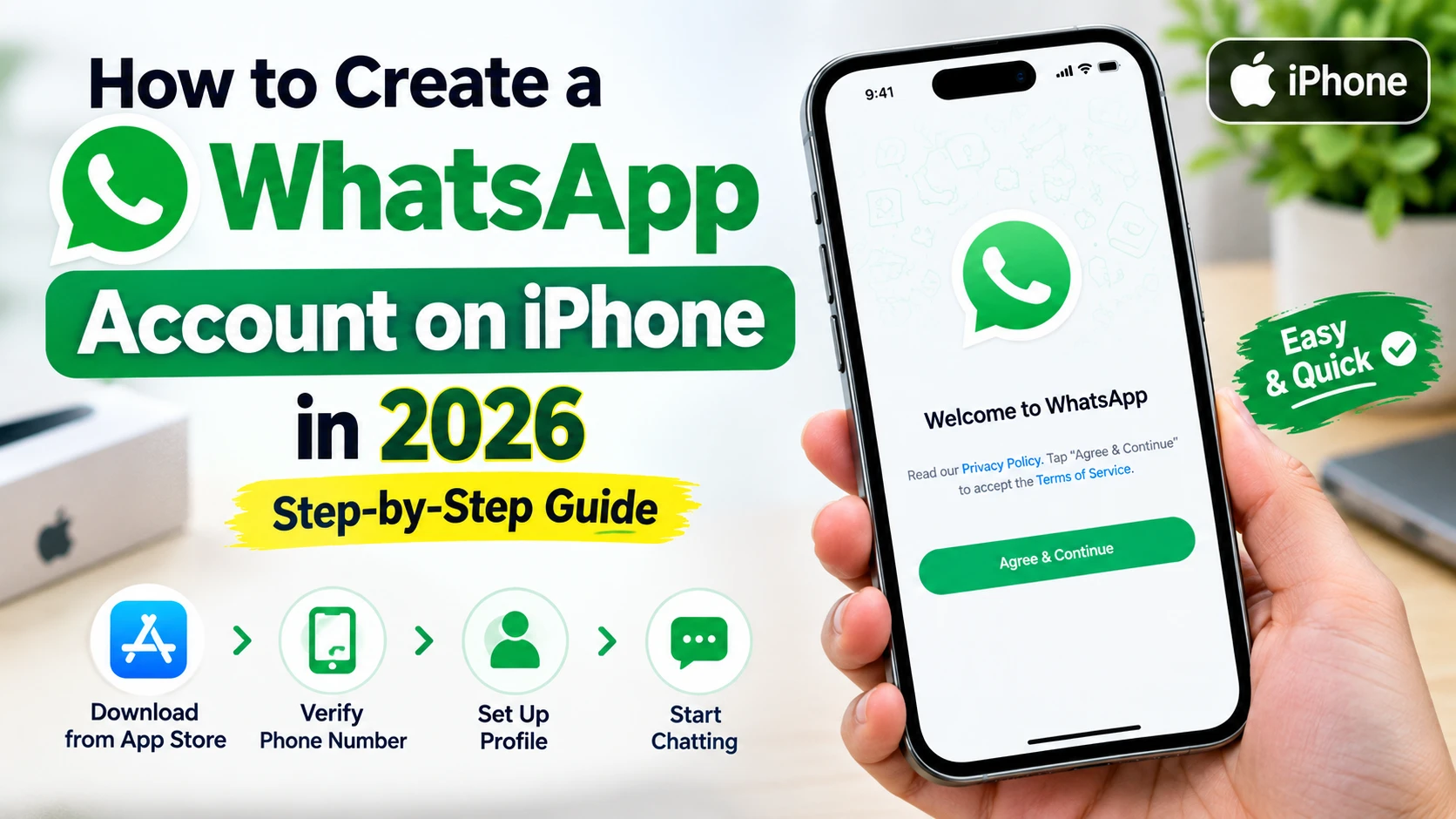
Setting up WhatsApp on an iPhone is a simple process that usually takes only a few minutes. Whether you have purchased a new iPhone, switched from Android, or are creating your first WhatsApp account, you can get started quickly with an active mobile number and an internet connection.
WhatsApp allows users to send messages, make voice and video calls, share photos and documents, create groups, and stay connected with friends, family, and colleagues.
In this guide, we will explain how to create a WhatsApp account on an iPhone in 2026, step by step.
What You Need Before Creating a WhatsApp Account
Before you begin, make sure you have:
- An iPhone with a working internet connection
- Wi-Fi or mobile data
- An active mobile phone number
- Access to the SIM or phone number for verification
- An Apple ID for downloading apps from the App Store
- Enough storage space to install WhatsApp
Your phone number is important because WhatsApp uses it to verify and activate your account.
Step 1: Open the App Store
First, unlock your iPhone and open the App Store.
The App Store is Apple’s official marketplace for downloading applications. You can find its icon on your iPhone’s Home Screen or App Library.
Step 2: Search for WhatsApp
Tap the Search option in the App Store and type:
WhatsApp Messenger
Look for the official WhatsApp application and make sure you select the legitimate app before downloading it.
This is important because using unofficial or suspicious applications can create security and privacy risks.
Step 3: Download WhatsApp
After finding the official WhatsApp app, tap Get.
Depending on your iPhone’s settings, Apple may ask you to confirm the download using Face ID, Touch ID, or your Apple ID password.
Wait for the application to finish downloading and installing.
Step 4: Open WhatsApp
Once the installation is complete, tap Open.
You can also find the WhatsApp icon on your iPhone’s Home Screen and tap it.
When WhatsApp opens for the first time, you will see its welcome screen. Follow the on-screen instructions and tap the option to agree and continue.
Step 5: Select Your Country
WhatsApp will ask you to select your country.
Choose the country associated with your mobile number. For example, if you are using a Pakistani number, select Pakistan.
Selecting the correct country is important because WhatsApp needs the correct international country code for your phone number.
Step 6: Enter Your Phone Number
Enter your active mobile phone number in the required field.
Check the number carefully before continuing. Then tap Next.
WhatsApp will use this number to verify your account.
Step 7: Verify Your Phone Number
After submitting your number, WhatsApp will send a verification code to your phone.
Enter the received verification code when prompted.
In some cases, the iPhone may automatically detect the verification code, making the process faster.
If you don’t receive the code immediately, wait a little and make sure your phone has a working mobile connection. You can also use the available option to request another code.
Step 8: Create Your WhatsApp Profile
After your number has been successfully verified, WhatsApp will ask you to create your profile.
Usually, you can add:
- Your name
- A profile picture
Adding a profile picture is optional, but it can make it easier for your contacts to recognize you.
Choose a name that you are comfortable displaying to your WhatsApp contacts.
Step 9: Allow Necessary Permissions
WhatsApp may request access to features such as your contacts, photos, microphone, or notifications.
You can review these permissions and decide which ones you want to allow.
For example, allowing notifications can help you receive alerts when someone sends you a message or calls you.
Step 10: Start Using WhatsApp
Congratulations! Your WhatsApp account is now ready.
You can use WhatsApp on your iPhone to:
- Send and receive messages
- Make voice calls
- Make video calls
- Share photos and videos
- Send documents
- Create group chats
- Share voice messages
- Communicate with friends and family
The exact features available can change as WhatsApp introduces new updates.
How to Add Contacts on WhatsApp
After creating your account, you can communicate with people whose phone numbers are saved in your contacts.
Open WhatsApp and check your chat or contact list. If a person uses WhatsApp with the number saved on your iPhone, they may appear as an available contact.
If someone doesn’t appear immediately, make sure their phone number is saved correctly and that WhatsApp has the necessary contact permission.
How to Protect Your WhatsApp Account
Creating an account is only the first step. You should also take basic security precautions.
Use Two-Step Verification
WhatsApp provides additional account-security features, including two-step verification. Enabling extra verification can help protect your account from unauthorized access.
Never Share Verification Codes
Never give your WhatsApp verification code to another person.
If someone asks you to send them the code you received by SMS, be extremely careful. A verification code can be used to activate your WhatsApp account on another device.
Review Privacy Settings
Open WhatsApp’s privacy settings and review options related to your profile photo, last seen information, groups, calls, and other account information.
Choose settings that match your comfort level.
What to Do If You Don’t Receive the WhatsApp Verification Code
Sometimes users may experience a delay when receiving the verification code.
Try these steps:
- Check that the phone number is correct.
- Confirm that your SIM is active.
- Make sure your iPhone has mobile service.
- Check your internet connection.
- Wait a few minutes before requesting another code.
- Use WhatsApp’s available verification options if prompted.
Avoid repeatedly requesting codes in a very short period because this can make the verification process more difficult.
What If WhatsApp Won’t Download on iPhone?
If WhatsApp is not downloading, check the following:
- Make sure your iPhone is connected to the internet.
- Check available storage.
- Confirm that you are signed in with your Apple ID.
- Restart your iPhone.
- Try the App Store again.
An unstable internet connection or insufficient storage can sometimes prevent an app from installing properly.
Can You Create WhatsApp Without a Phone Number?
A phone number is required for the normal WhatsApp account registration process because WhatsApp uses phone-number verification to activate an account.
Therefore, you should have access to a working number that can receive the required verification process.
Conclusion
Creating a WhatsApp account on an iPhone in 2026 is straightforward. You simply need to download the official WhatsApp application from the App Store, enter your phone number, complete the verification process, and set up your profile.
Once your account is activated, you can use WhatsApp to communicate through messages, voice calls, video calls, photos, videos, documents, and group chats.
For a safer experience, always protect your verification code, review your privacy settings, and keep WhatsApp updated.